I’m hosting the hotspot for my friend
1. Connect Adapter, Antenna and LAN Cable
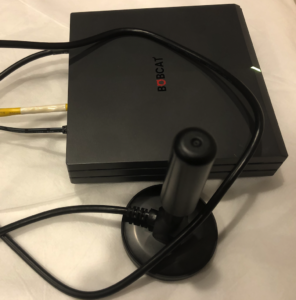
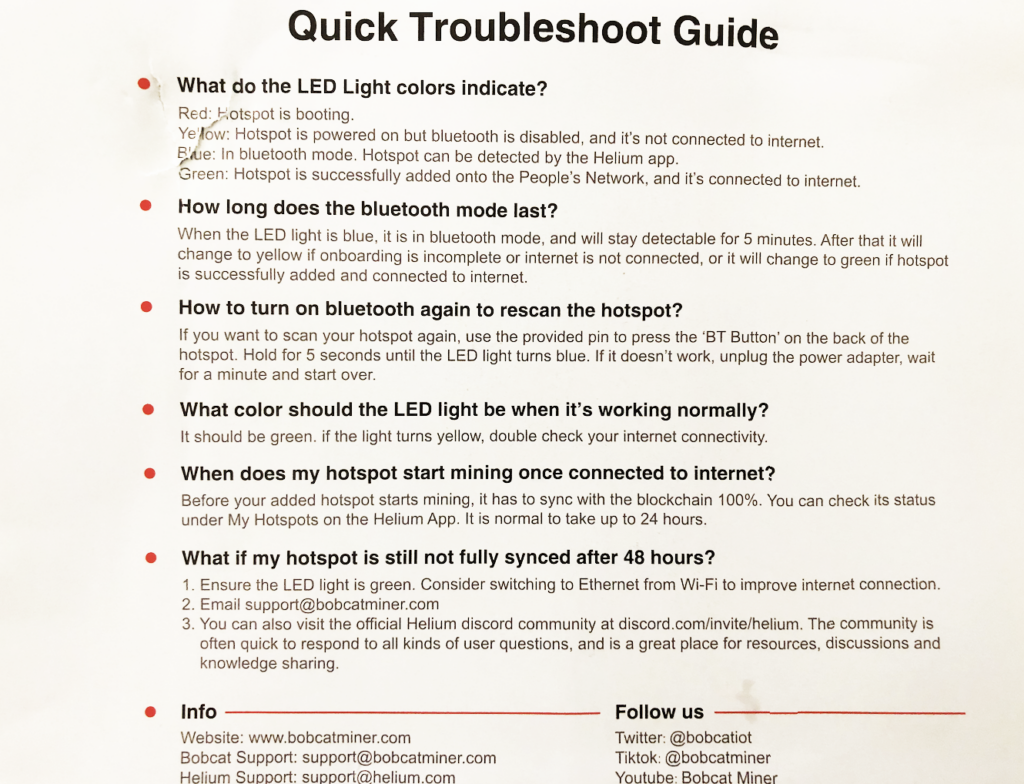
The light will turn to Green (with LAN cable) or Yellow (without LAN cable) after Red light flashes. You are all set if you don’t use Wi-Fi. Remember don’t put your Miner in HEAT/HUMIDITY. Put it in a bag or seal it in a box will cause high CPU temperature.
Make sure you put your Antenna near the Window or on your Roof / Balcony, the higher the better!
Good samples:
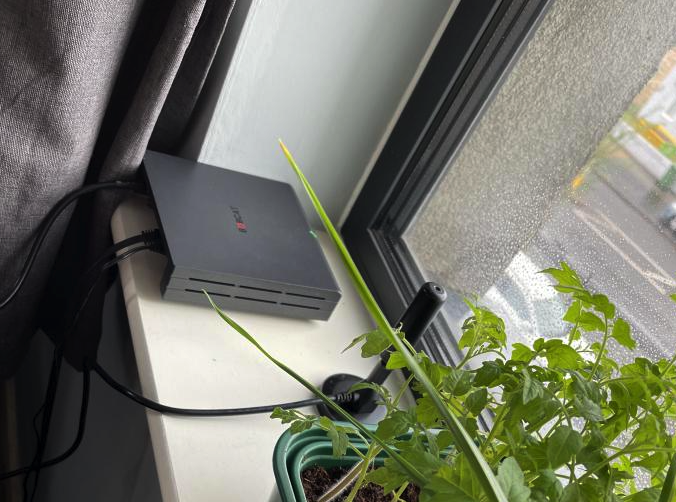



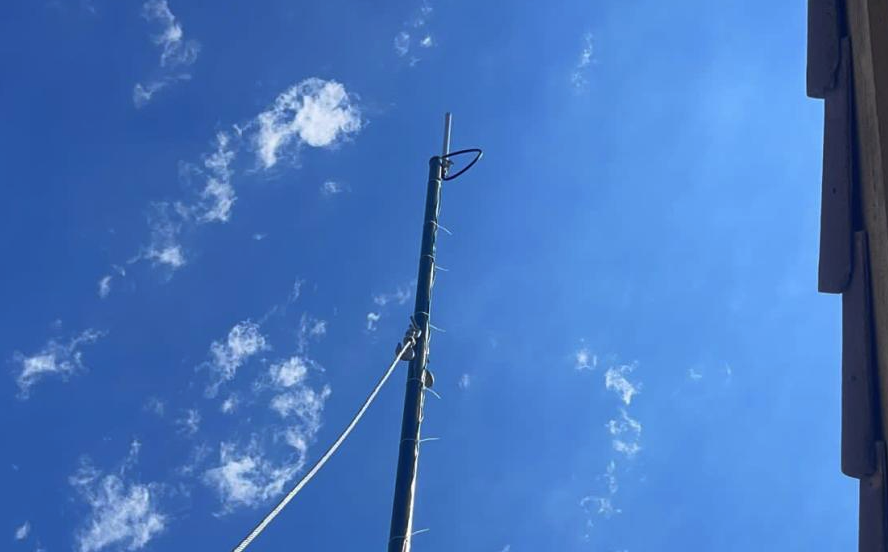
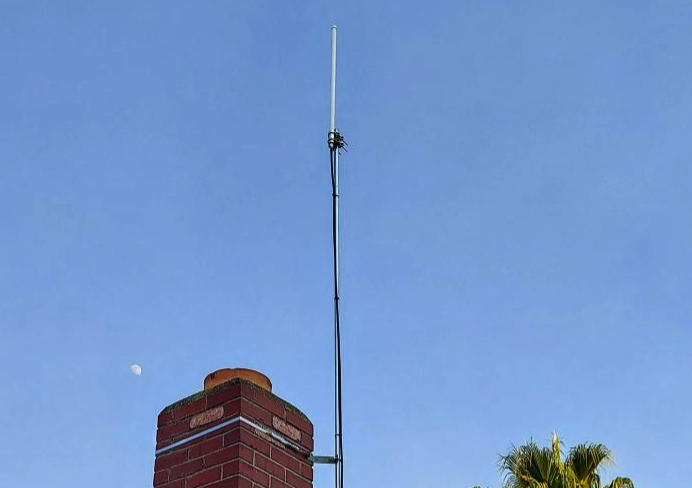
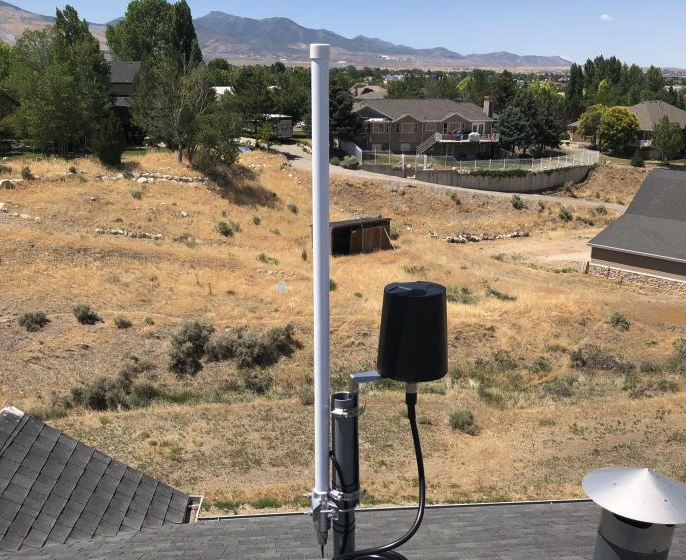
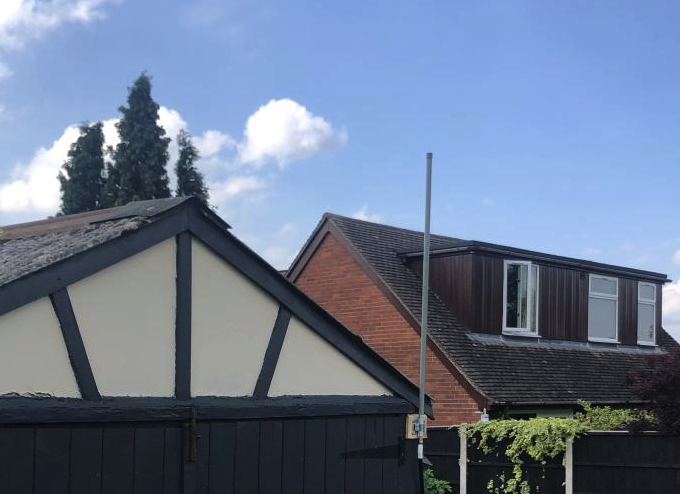
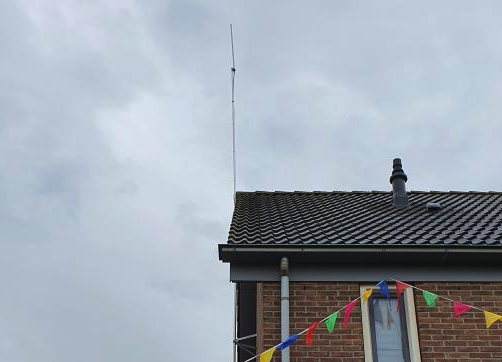
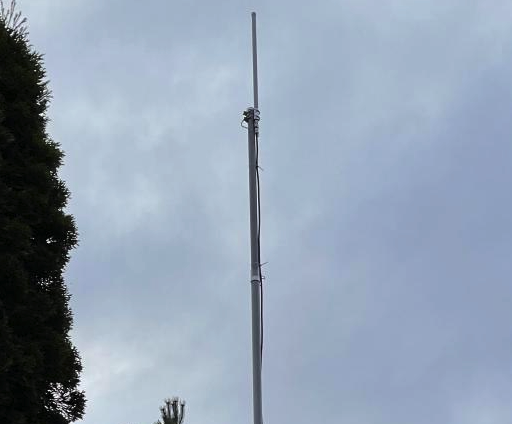
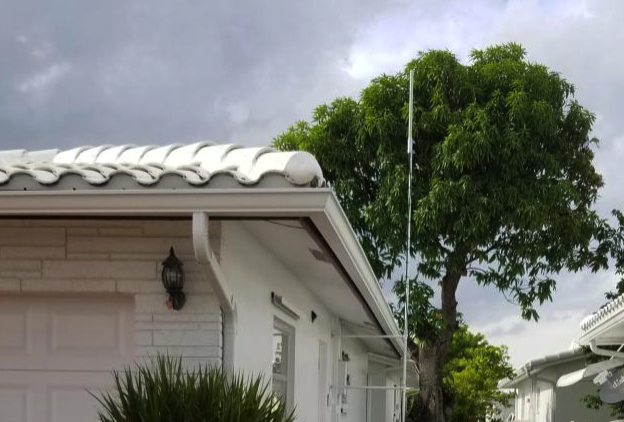
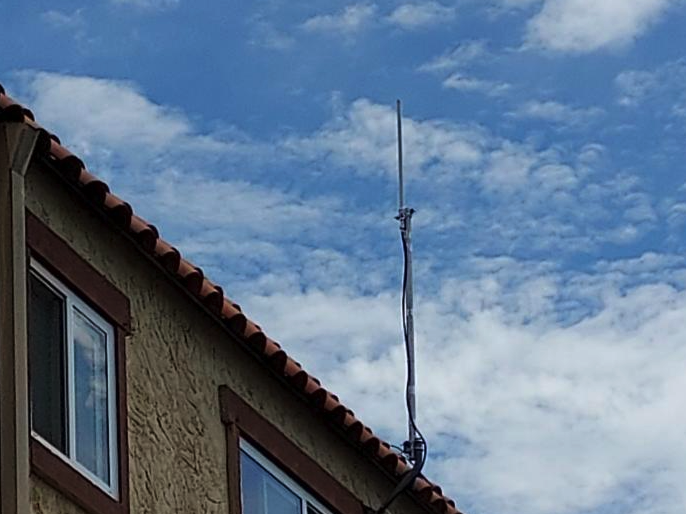
Thanks to Bobbers. Please contact me if you don’t want to show your picture here. I’ll delete it right way.
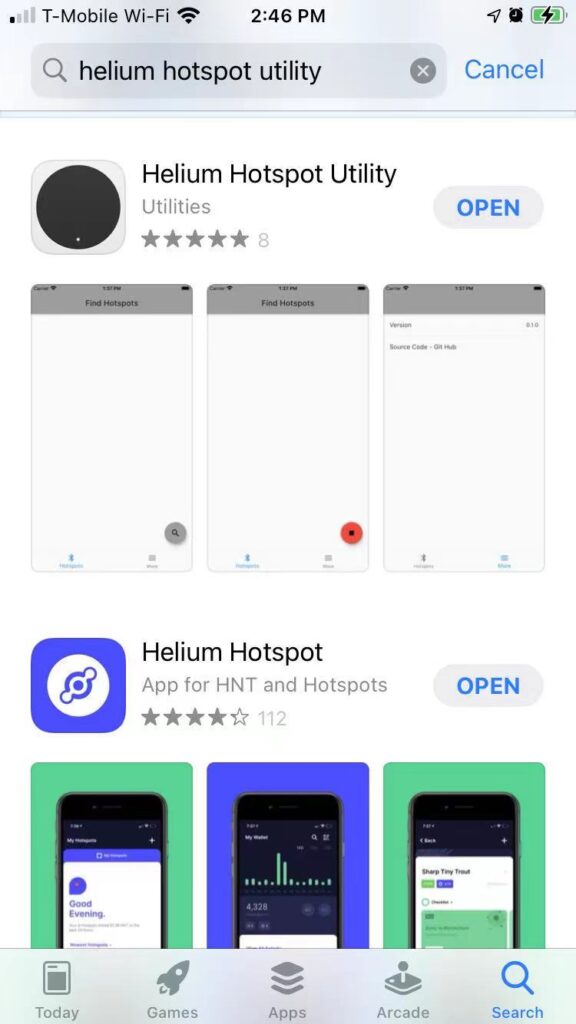
2. To use WiFi (optional), Download Hotspot Utility App
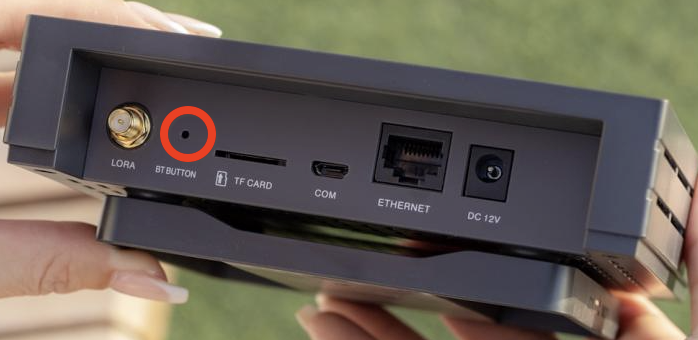
3. Enable bobcatminer Pair Mode
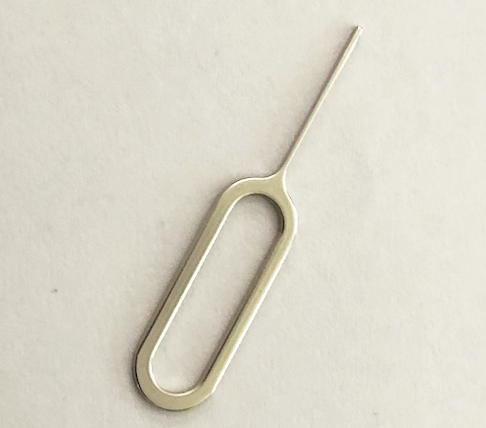
4. Configure Wi-Fi
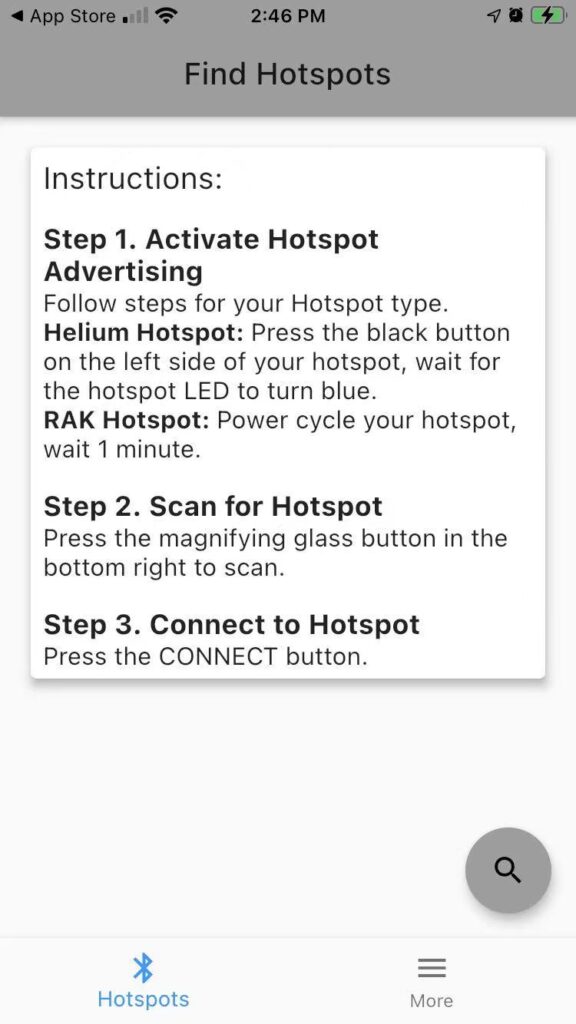
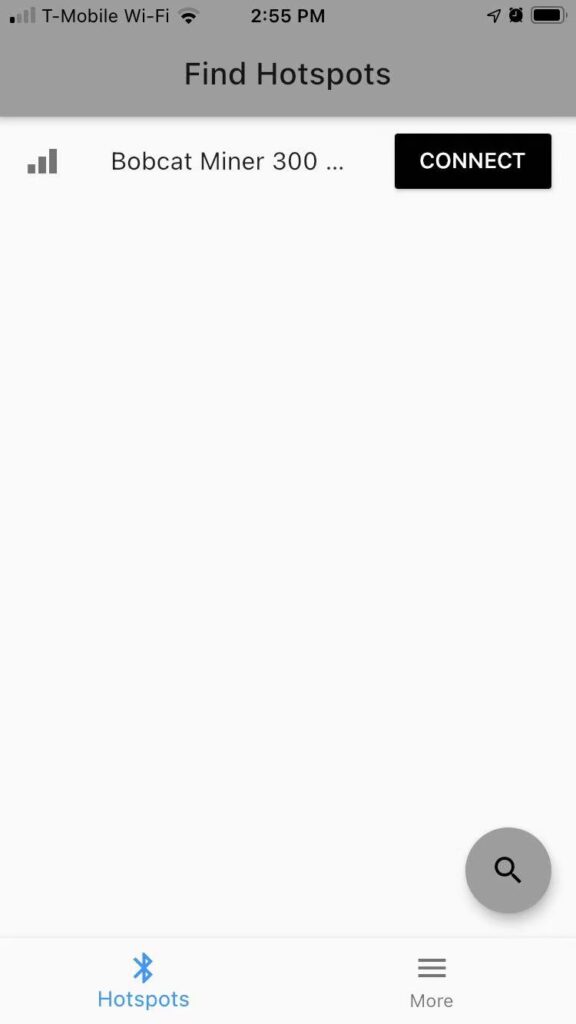
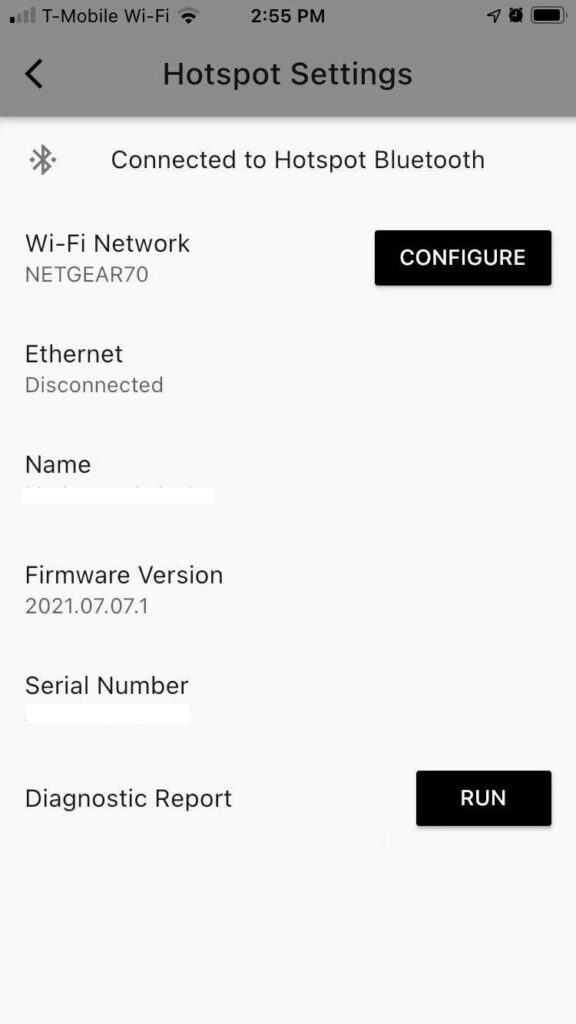
I’m the Hotspot Owner
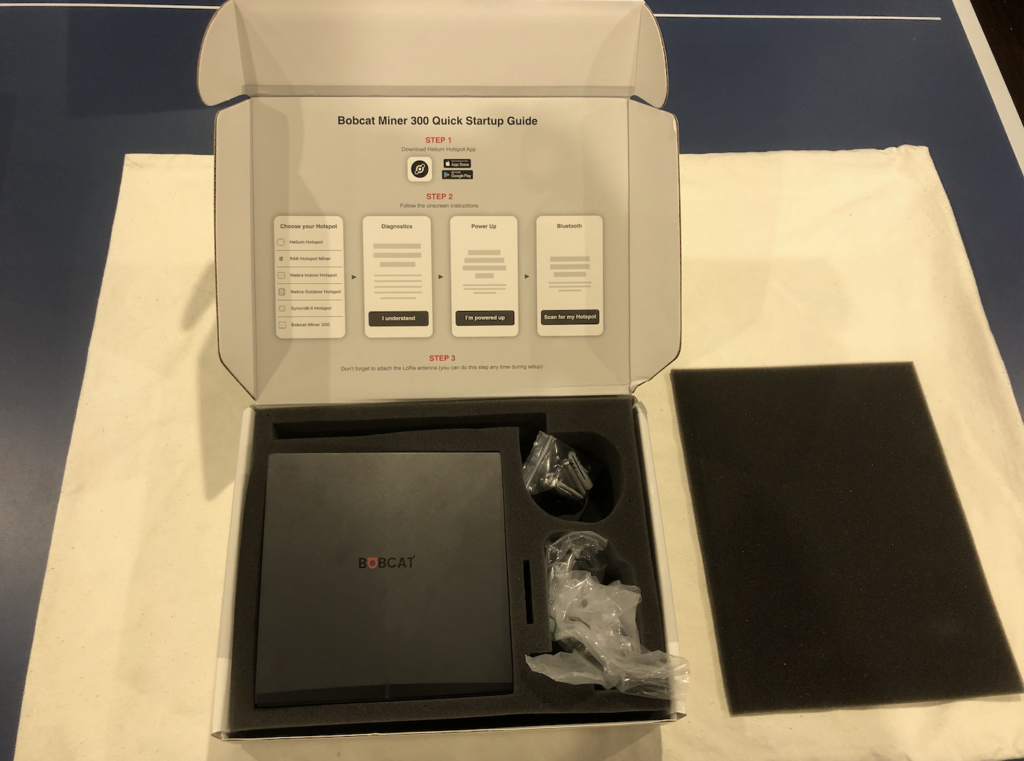
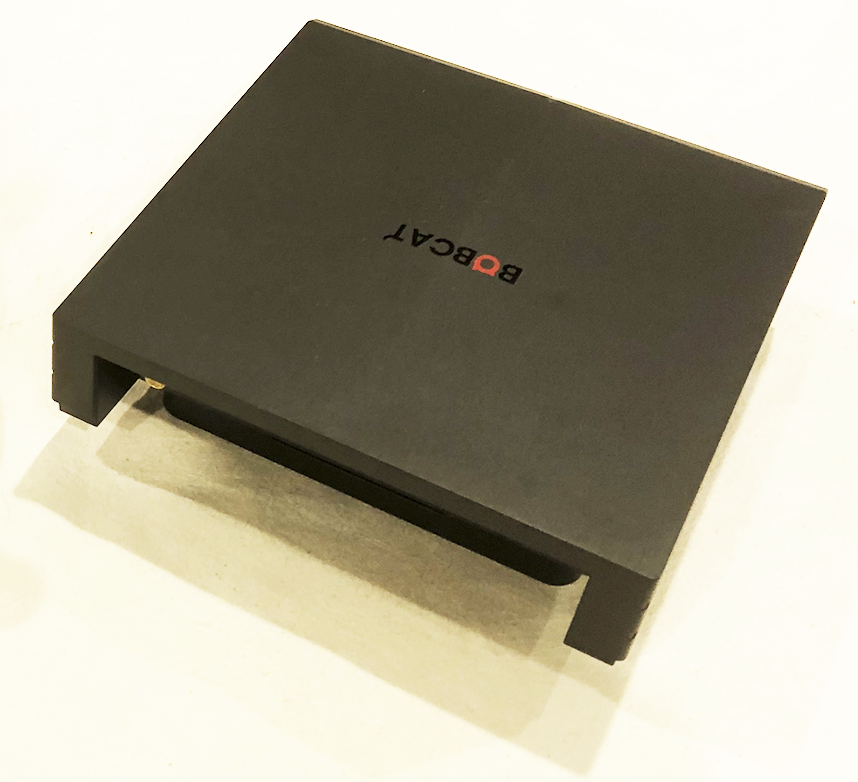
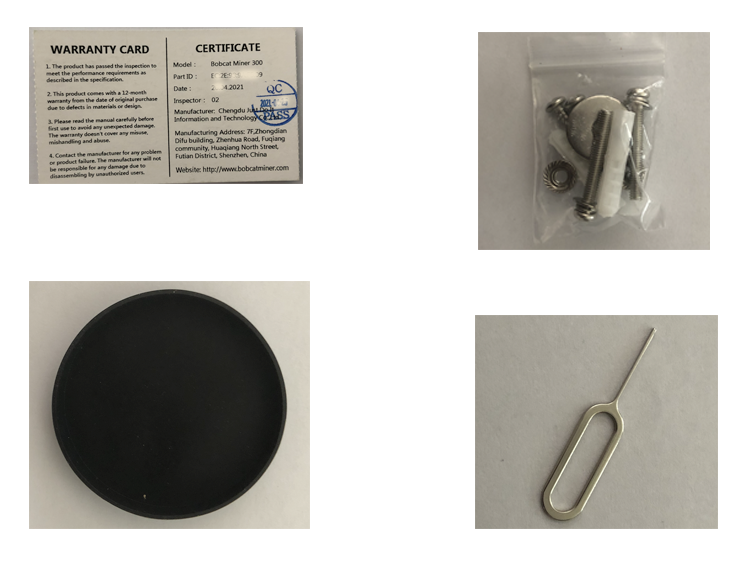
1. Open the Box
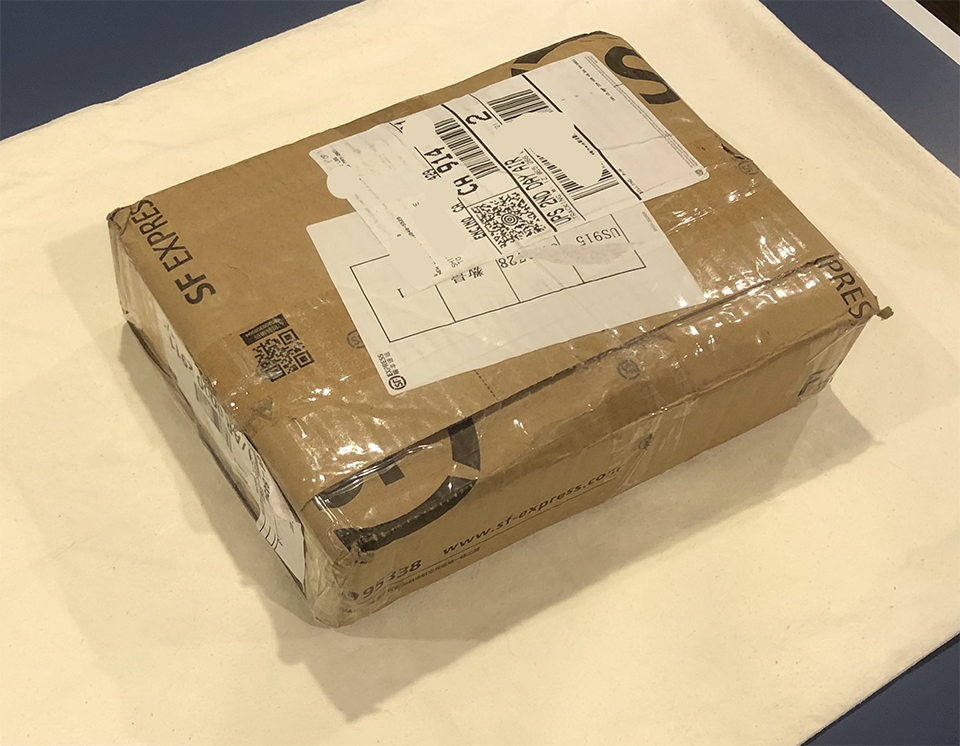
Your Bobcat Miner will be delivered to you by Fedex / USPS or SF Express from the Manufacturer directly. Before open the box, make sure it’s not opened, no damage on it.
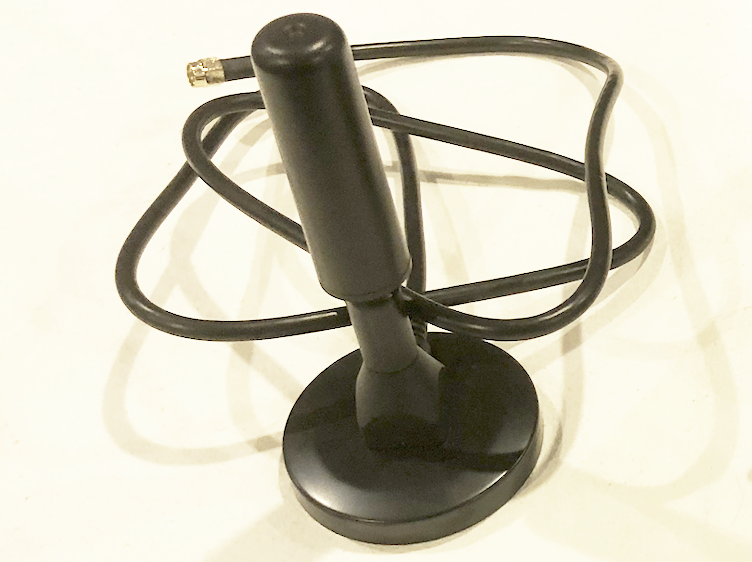
2. Connect Adapter and LAN Cable (optional)
The light will turn to Green (with LAN cable) or Yellow (without LAN cable) after Red flight flashes.
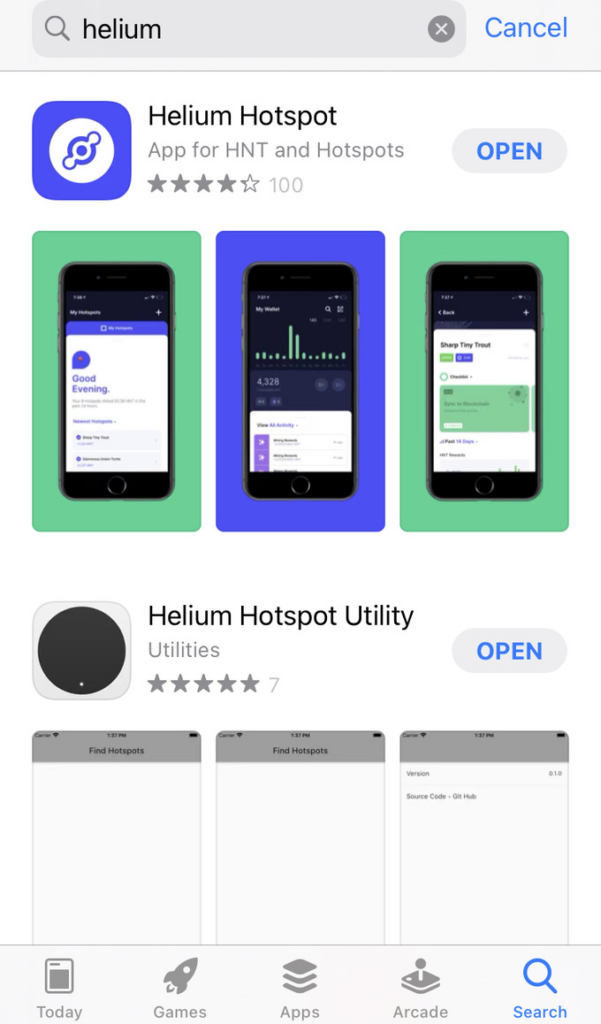
3. Download newest version Helium App
Old version Helium App may cause failure of location assertion.
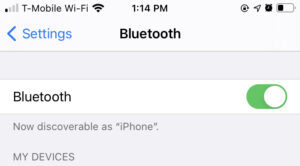
4. Enable Bluetooth & Location service on your phone
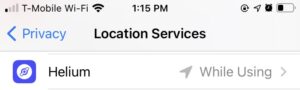
5. Enable bobcatminer Pair Mode
6. Pair bobcatminer in your Helium App
Just follow the App step by step. You don’t need to assert location if you not decided yet.
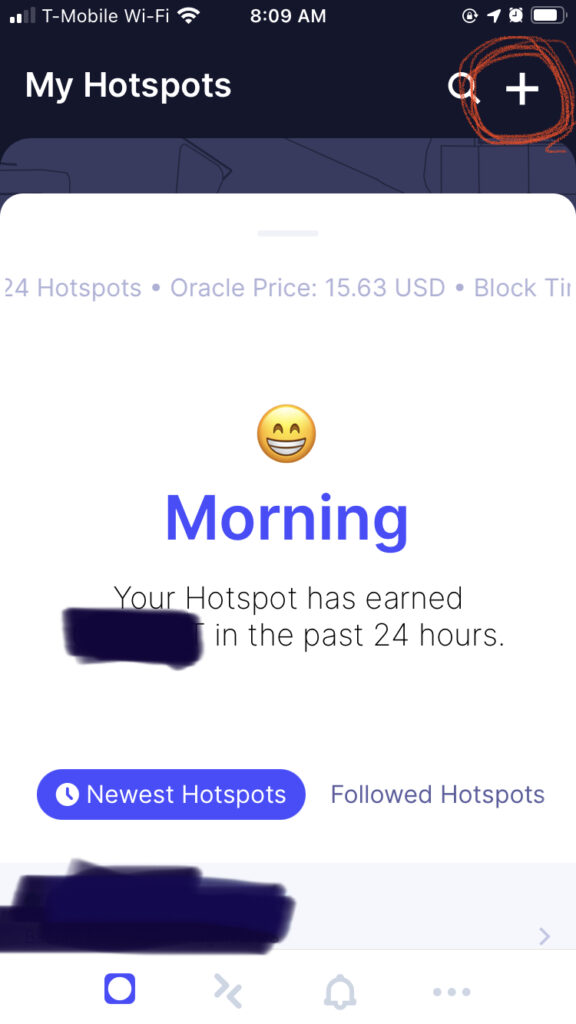
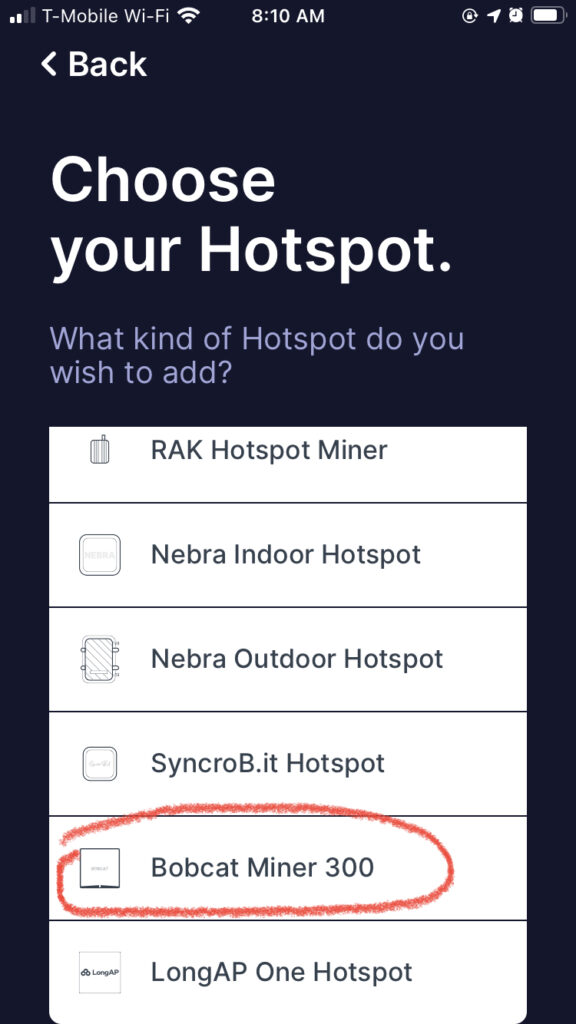
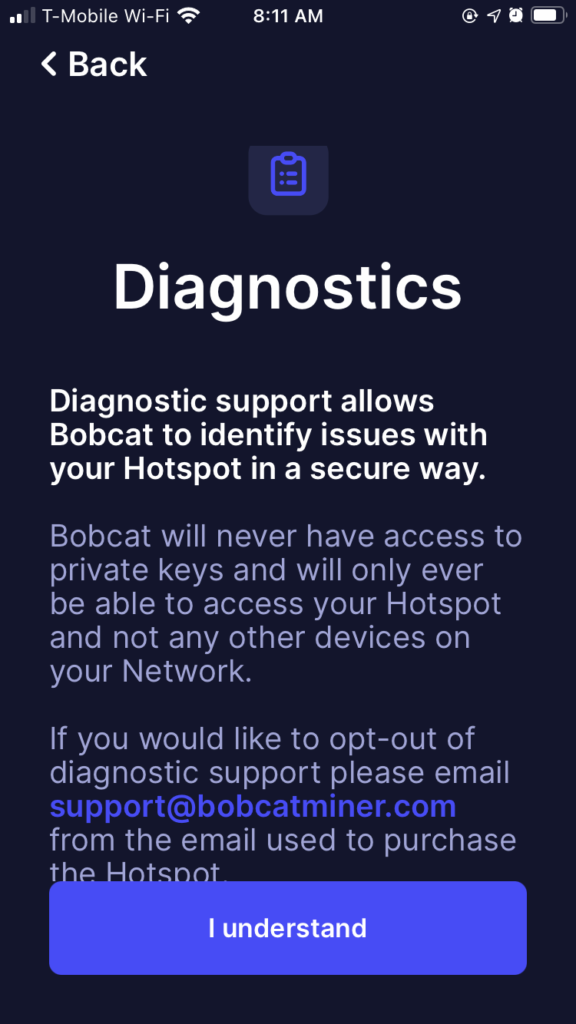
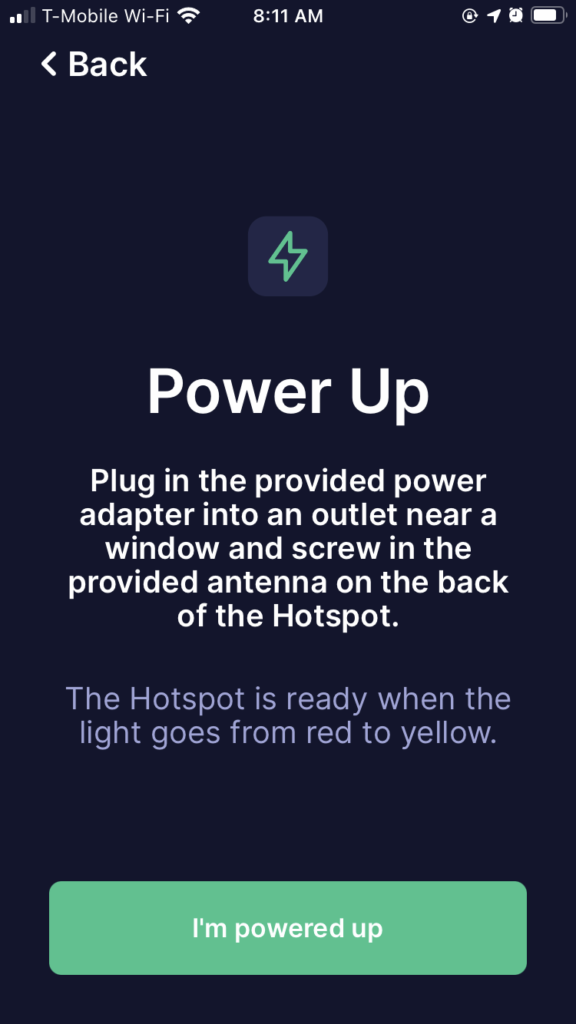
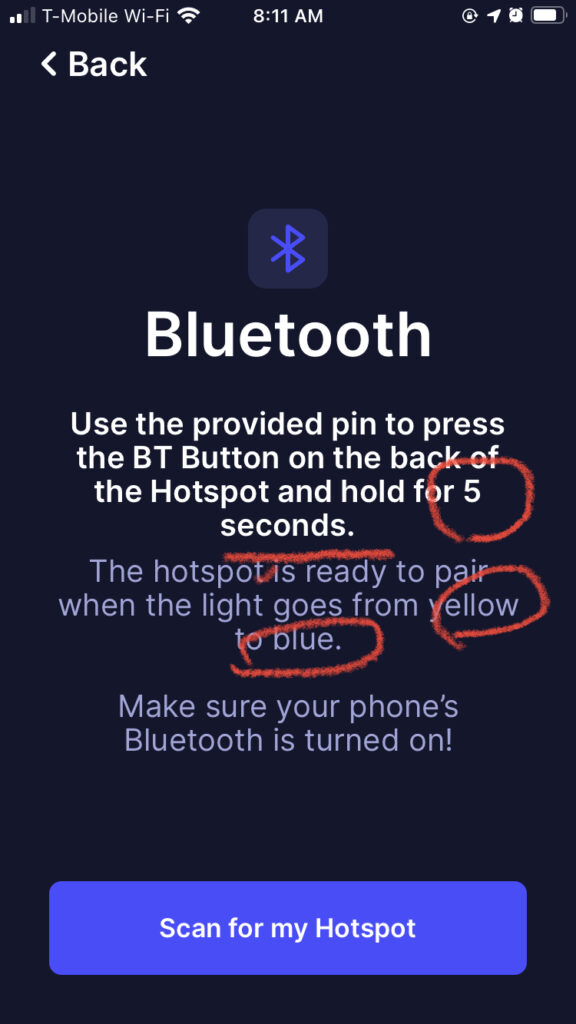
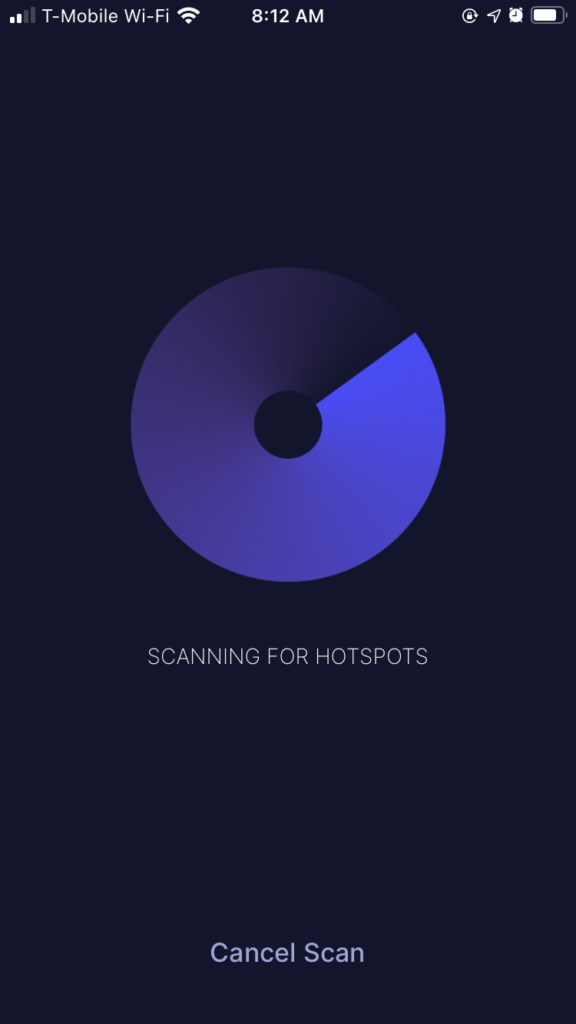
7. Setup Wi-Fi (optional)
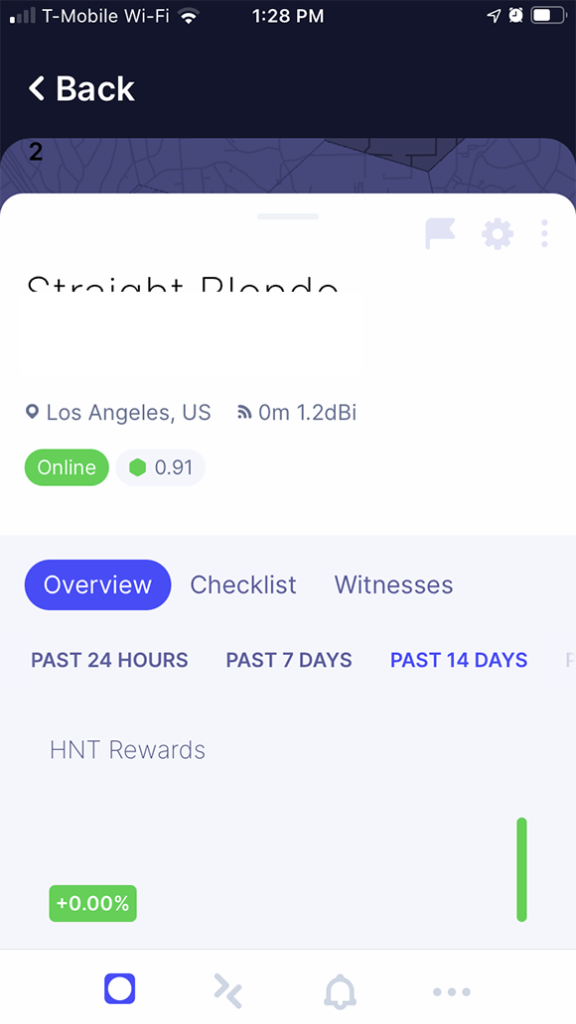
click settings 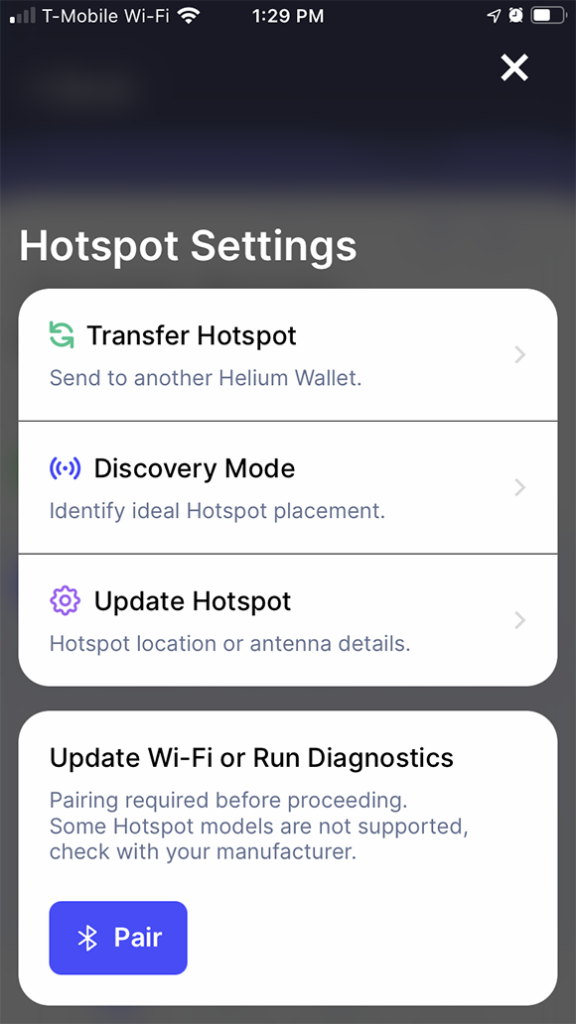
click pair 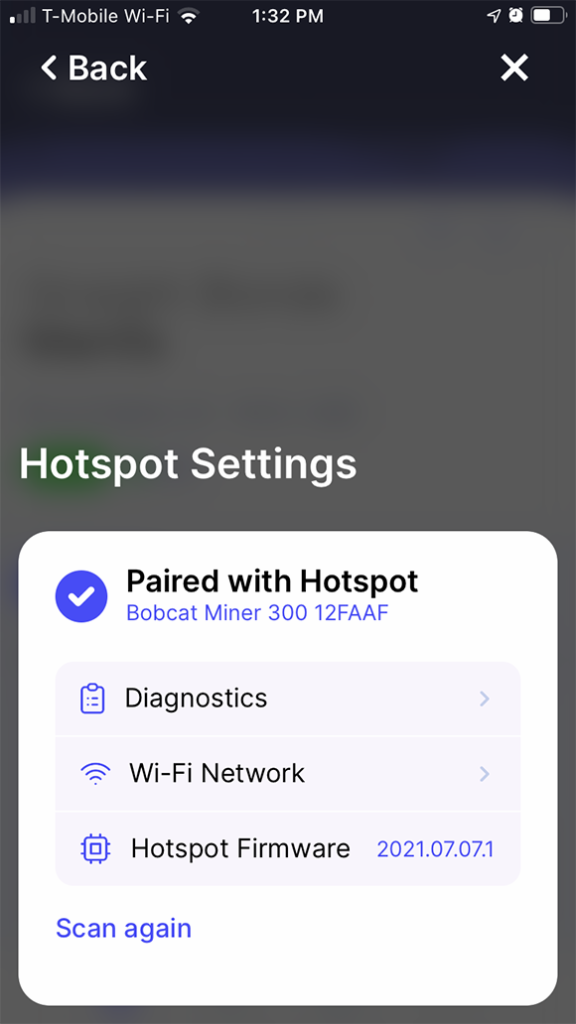
wi-fi 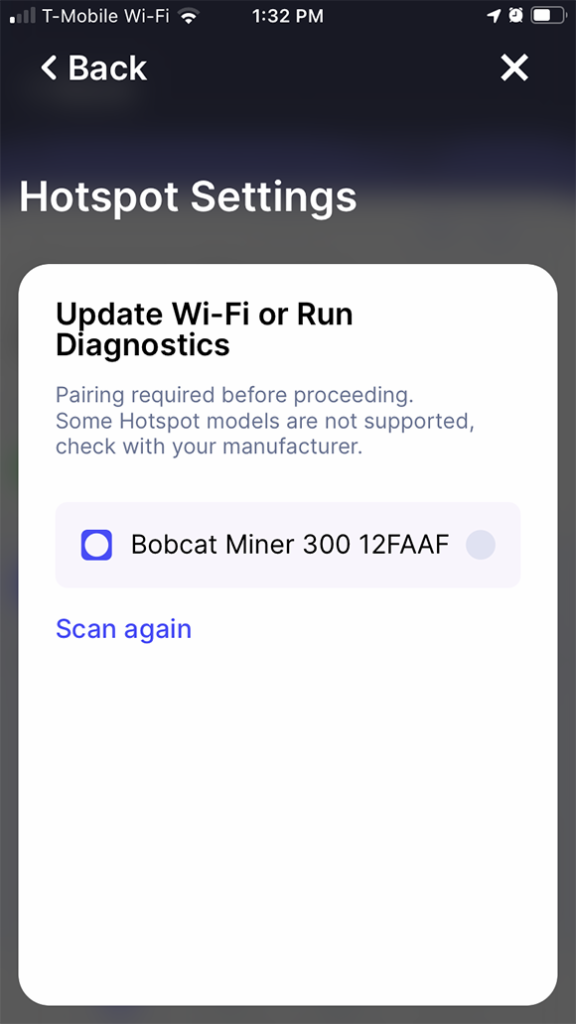
Select Bobcat Miner 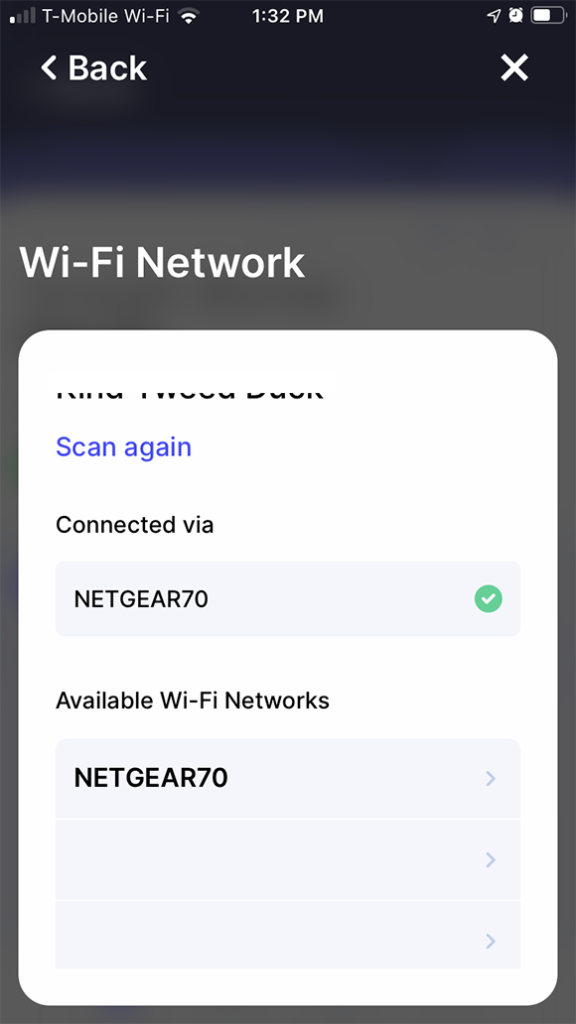
Select Your Wi-Fi
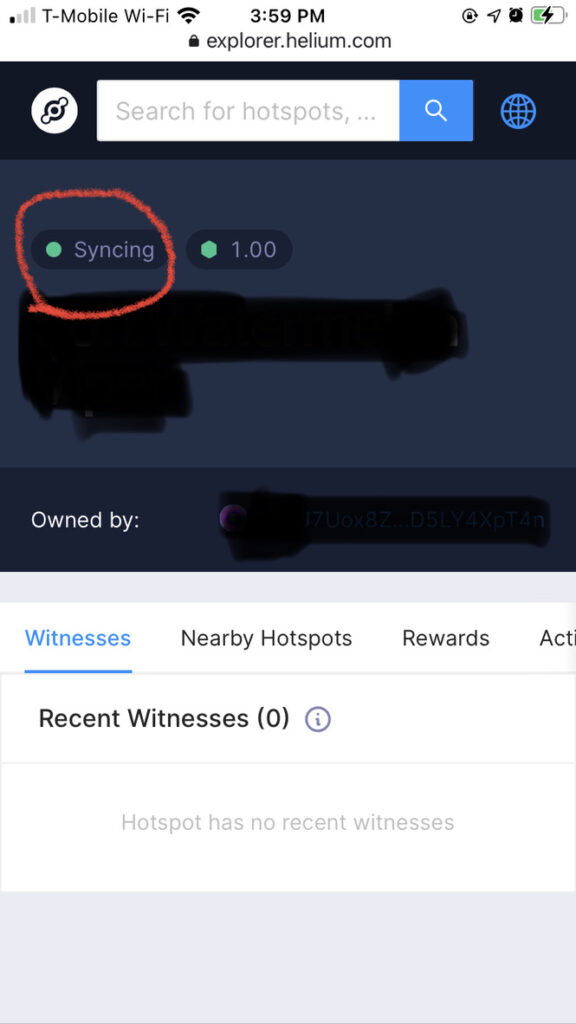
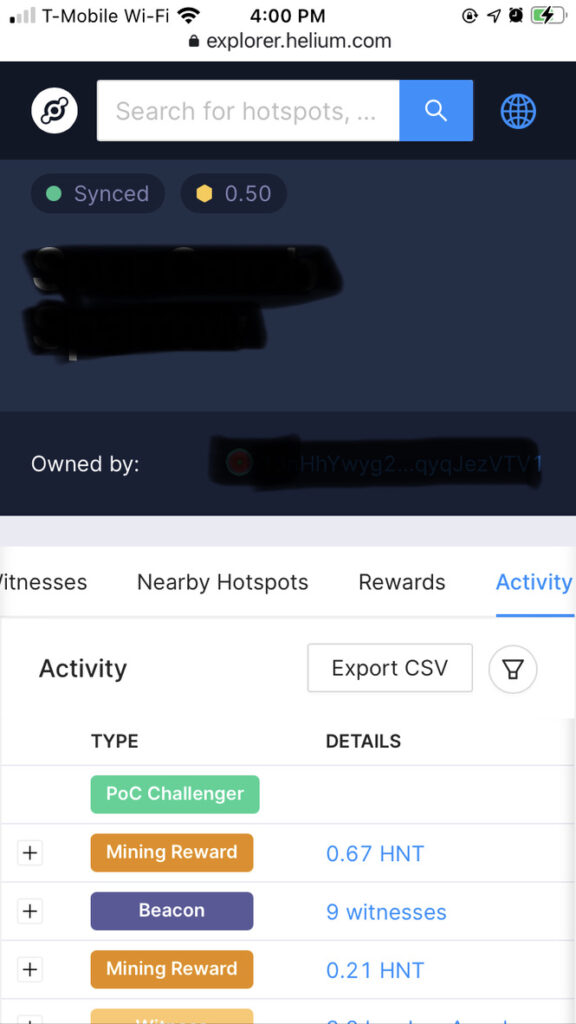
8. Assert Location &/ wait status from “Syncing” to “Synced”
Buy Bobcat Miner from the official website: https://www.bobcatminer.com.